Mouse Double Clicking: A Repeatable Check
Separate duplicate button events from operating system double click settings and application behavior.
Reproduce individual clicks
Open the double click test and make deliberate single presses with a complete release between them. Keep your hand relaxed and avoid resting another finger on the button. Record the button and approximate number of unwanted extra events. A fast pair of intentional clicks is different from one physical press generating two transitions.
Compare the event and the symptom
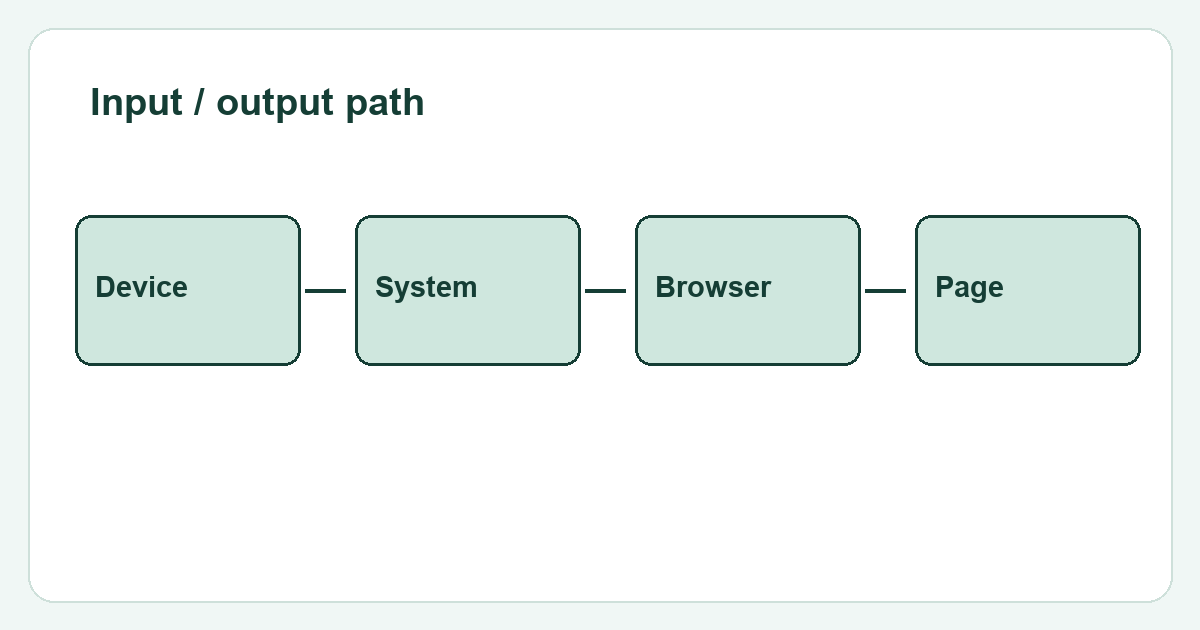
Operating systems and applications use a time window to interpret two clicks as a double click. Changing that window changes interpretation, not necessarily the electrical behavior of a switch. If a folder opens unexpectedly but the browser sees one event per press, investigate application and system settings as well as the mouse.
Change one condition
Try another ordinary USB port or a supported connection mode. Compare a second mouse on the same computer if one is available. Then test the suspect mouse on another computer. Keep click technique similar. A problem that follows one mouse across systems is stronger evidence about the device than a problem seen in only one application.
Decide what to do next
Save a short log showing the repeated behavior and connection details. Do not assume every short interval is a fault: accidental finger movement can produce legitimate extra clicks. If duplicate events remain reproducible, consult warranty or manufacturer service instructions. Avoid opening the mouse or applying liquids merely because a web test flags an interval.