How to Measure Mouse DPI More Consistently
Prepare a measured mouse movement and understand why browser DPI estimates change with acceleration and scaling.
Measure physical travel first
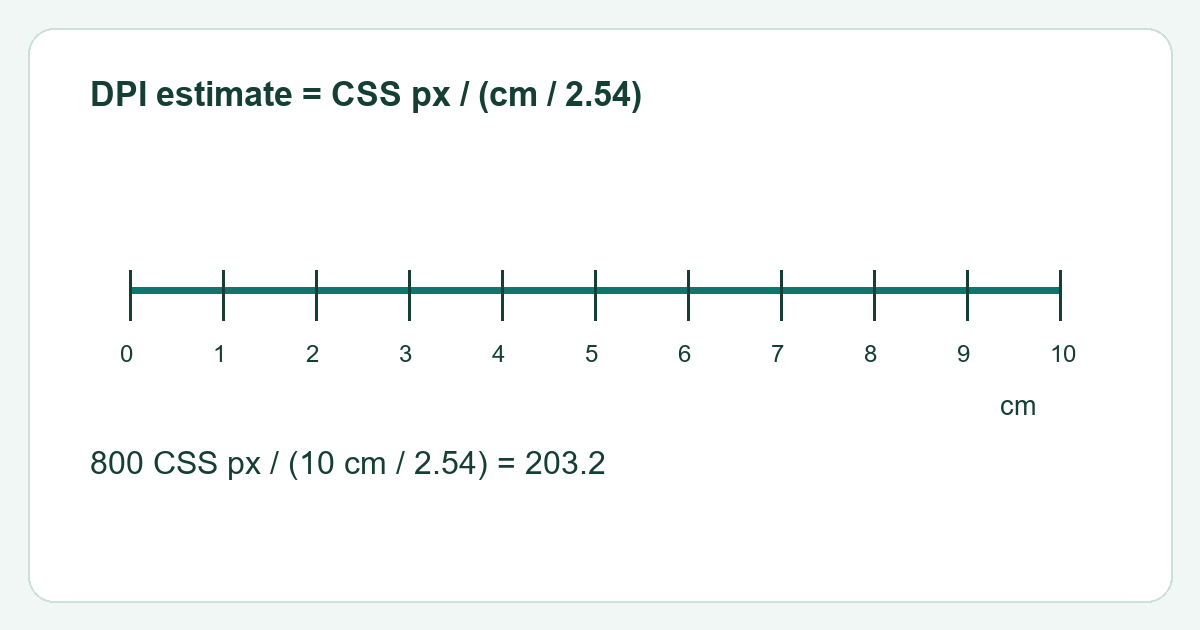
Use a physical ruler to mark a straight distance on the mouse pad. Ten centimetres is a practical example if your workspace allows it. Start the sensor at a repeatable position, not merely the front edge of the mouse shell. Keep the same mouse profile and record the selected sensitivity setting before testing.
Repeat the same movement
Enter the measured distance in the DPI analyzer, start the measurement and follow the page instructions for holding the primary button. Move in a straight line over the marked distance. Repeat several times at a similar speed. Avoid lifting the mouse during a run. Compare the middle of your results rather than choosing whichever value matches the advertised DPI.
Understand the estimate
The browser calculation uses pointer movement expressed in CSS pixels and your physical distance. Pointer acceleration, system sensitivity, scaling and the event path can affect it. A result of 800 CSS pixels over 10 cm gives about 203.2 by this formula: 800 divided by (10 divided by 2.54). That does not establish the sensor's hardware count setting.
Use the result appropriately
This method is useful for comparing a setup under controlled conditions. For the configured hardware DPI, check the mouse manufacturer's software or documented profile settings. If estimates vary widely, improve the physical measurement and repeat before changing hardware. A rounded result is more honest than several decimal places that the setup cannot support.